Variable Data Printing Guide
Variable Data
Printing
Personalise each print item without changing your main design. One artwork template, hundreds of unique prints.
What is Variable Data Printing?
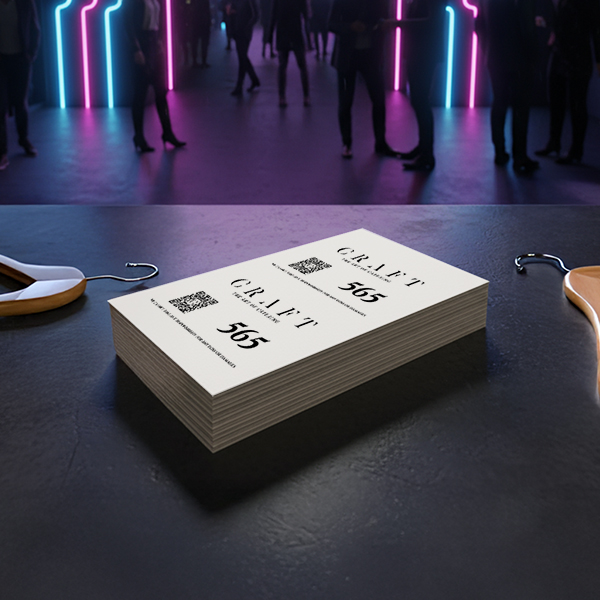
Variable Data Printing (VDP) lets you personalise each print item - without changing your main design. One digital artwork template can produce hundreds or thousands of unique prints, each containing different names, numbers, messages, or images. Perfect for direct mail, vouchers, tickets, and scratch cards.
What You Can Personalise
- Customer names or contact details
- Unique discount or coupon codes
- Sequential numbering or serial IDs
- Barcodes or QR codes
- Branch-specific addresses or phone numbers
- Event ticket information or seat numbers
- Personalised messages or taglines
How It Works
VDP combines two elements in digital print:
- Static artwork: one layout for all items.
- Data sheet: a spreadsheet of values to merge, one record per row.
Our software merges these during print production, inserting the correct line of data onto each piece automatically - no manual editing needed. This works across a wide range of products, from single-sheet prints to multi-page formats such as stapled booklets and wiro bound books.
Setting Up Your Data
Create a spreadsheet with each line representing one item and each column representing a field (e.g. Name, Code, Message).
Important Ensure your column headers match the placeholders in your design for accurate merging.
Sample Data Tables
Names with Initials
| Name |
|---|
| John D |
| Emma B |
| Charles E |
See also: name tag stickers or personalised wedding invitations.
Event Passes
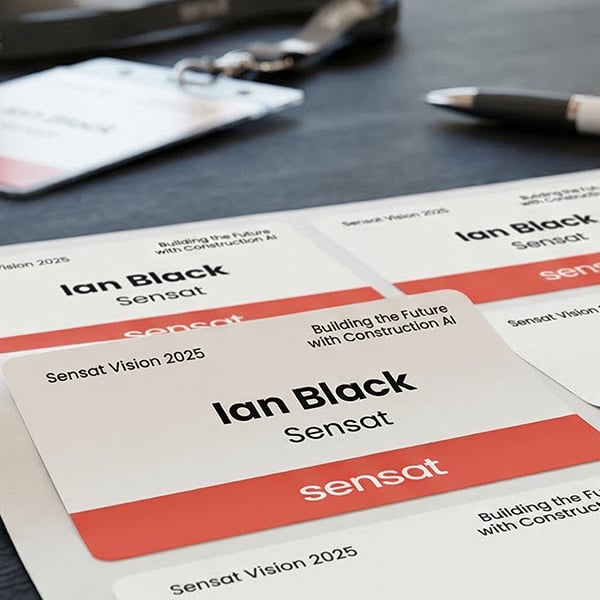
| Name | Title | Company |
|---|---|---|
| Emma Johnson | Marketing Manager | Apprintable |
| James Lee | Product Designer | Apprintable |
| Sarah Patel | Sales Executive | Apprintable |
See also: Printed event passes.
Scratch Cards
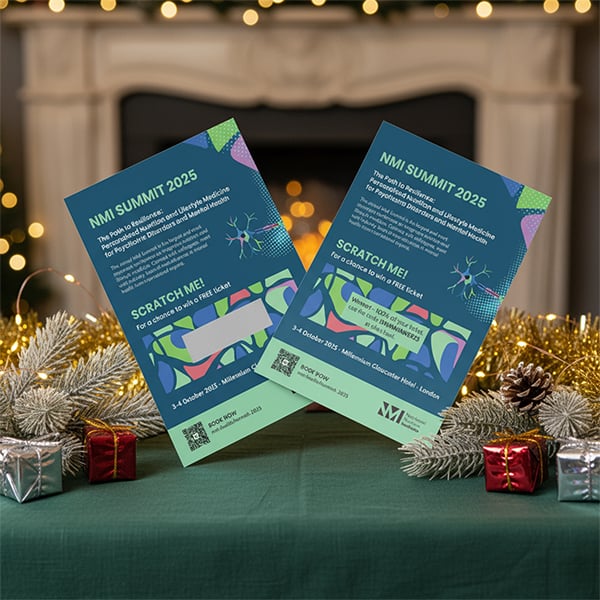
| Card File | Scratch Code | Qty |
|---|---|---|
| Winner1 | WIN10Off | 10 |
| Winner2 | WIN7OFF | 90 |
| Loser | Try Again | 100 |
See also: Printed Scratch Cards and our Scratch Card Printing Guide.
Save the sheet as .CSV or .XLSX. If including images, zip the image folder and upload it together with your artwork.
File Formats
- Artwork: PDF, CMYK, 300 dpi, 3 mm bleed
- Data: CSV or XLSX, one record per row
Use consistent field names between your spreadsheet and any placeholders in your artwork. You may design in Illustrator, InDesign or Photoshop using a dedicated "VDP" layer. Export your final artwork to PDF. Canva Pro users can use the built-in data merge - again, export to PDF for print.
Layout and Positioning Tips
- Use a dedicated layer in your design software for variable fields
- Keep at least 3 mm clear space around variable elements
- Reserve clear space for variable fields - avoid tight boxes around long names
- Use high contrast for QR/barcodes and keep them on light backgrounds
- For long lists, test a small merged proof first to check overflow and kerning
Related Guides
You might also like
Scratch Card Printing Guide
Everything you need to know about designing and ordering printed scratch cards.
What is GSM Paper?
A plain-English guide to paper weights and how to choose the right stock for your project.
Artwork Guidelines
How to set up bleed, safe areas, colour mode, and resolution for perfect print-ready files.
Print in London
Same-day and next-day printing across London and how it works.